How it works

Fast search for local SFX libraries

Search your local SFX library with plain words, find similar sounds from existing results, and export usable clips without leaving the workflow.

Plain-word search

Search with plain words

Type what you are looking for and get relevant results from your local library without depending only on filenames.

Enter a plain-word query and preview matching results.

This is useful when you know the sound you want but not the exact file name, tag, or folder location. Instead of browsing manually, you can start with a plain-language query and listen through relevant matches.

  • Describe the sound in plain language
  • Find relevant results without exact filenames
  • Reduce manual folder browsing in large libraries
AI similarity search

Find similar sounds from an existing result

Use AI similarity search to turn a result or source file into a reference and quickly find nearby alternatives, variations, and replacements.

Use AI similarity search to branch from one sound into nearby alternatives.

This is not a conventional similarity algorithm. SFX Stacks uses AI to find sounds that are close in character, so you can start from one useful result and explore better options around it without breaking your flow. Once your library is indexed, results come back immediately even in large libraries.

  • Use one sound as a reference point
  • Find alternatives without restarting the search
  • Get immediate results even in large indexed libraries

Preview and export

Preview, select, and export clips

Preview results, select the usable section, and export only the part you need.

Preview a sound, select a region, and export the part you want.

Once you find a suitable sound, you can inspect it in the waveform view, define the section you want, and export that clip directly. This keeps the search and export steps in one place.

  • Preview sounds without opening another tool
  • Select a clip instead of exporting the whole file
  • Move from result to export in the same workflow

Metadata search

Use metadata when you need a narrower result set

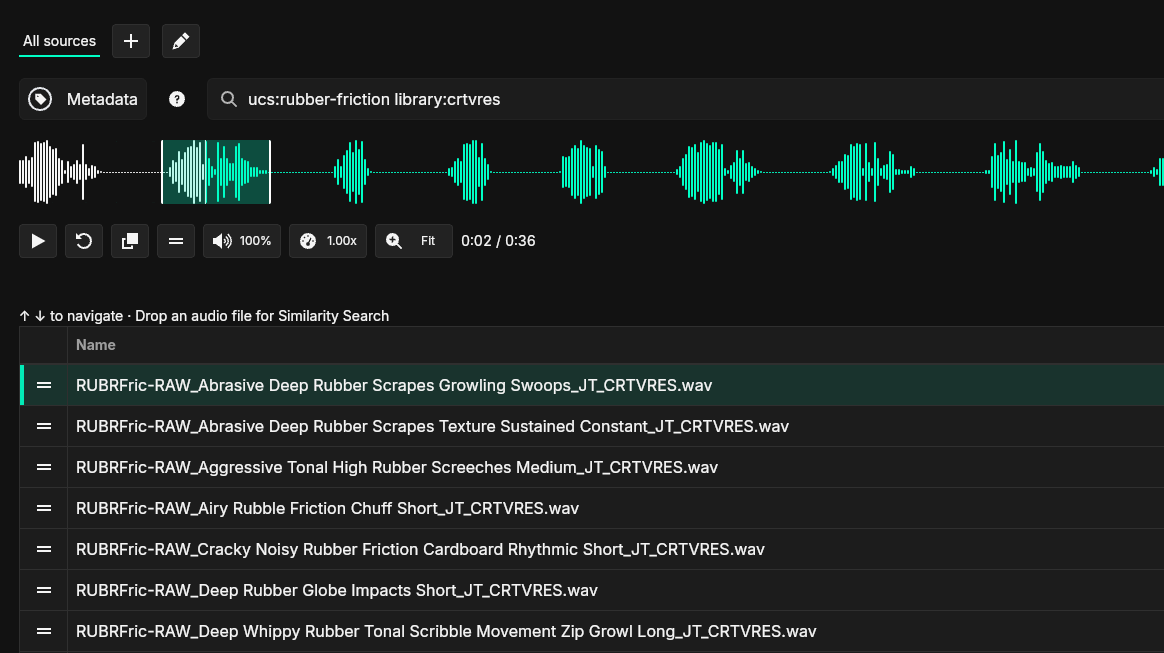
Search by tags, categories, library fields, and file details when you already know something about the sound.

SFX Stacks metadata search showing filtered sound effect results and waveform preview

Use metadata filters to narrow results before exploring related sounds.

Metadata search is useful when you want a more controlled starting point. For example, you may already know the library, category, UCS term, or other identifying detail. From there, you can still use similarity search to expand into nearby options.

  • Search by known tags and categories
  • Narrow results with library and file details
  • Use metadata matches as a starting point for similarity search

Local sources

Use your existing library folders

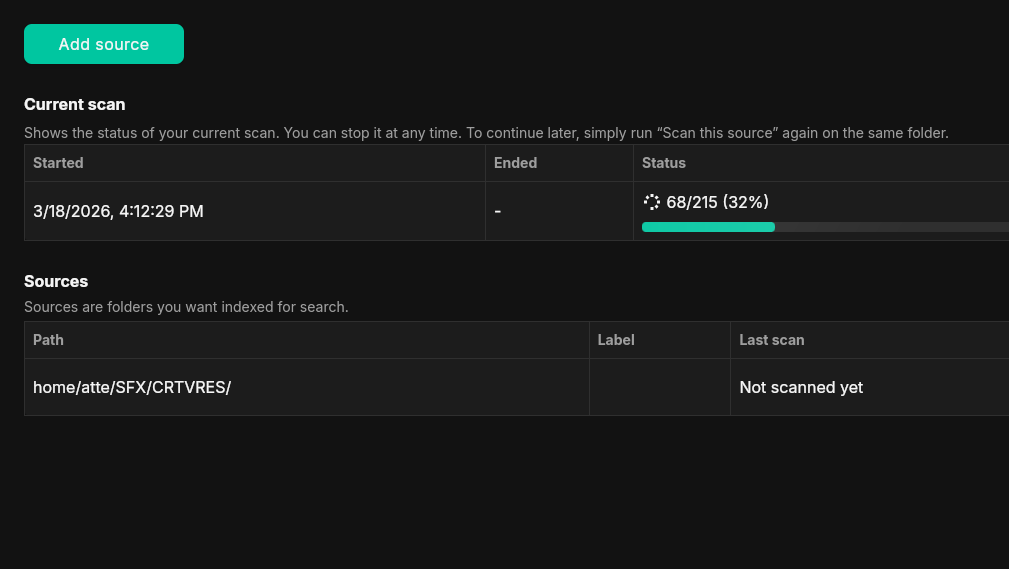
Add your existing folders as sources and let SFX Stacks scan them locally.

SFX Stacks sources view showing library folders and scan status

Add folders, scan them locally, and track progress in the app.

You do not need to reorganize your library before using the app. SFX Stacks works with the folders you already have on disk and builds its search data locally on your machine.

  • Add existing folders as sources
  • Keep your current folder structure
  • Scan and index files locally

Try it on your own library

Download the 14-day trial and test SFX Stacks with your existing local SFX workflow.