Getting started
SFX Stacks works with your own local sound libraries. Install the app, add your folders, let it scan, and start searching.
You can begin testing searches before the full scan finishes.
1. Download and install
Download the correct version for your system from the Download page.
- Windows 10/11 and macOS (Apple Silicon) builds are available
- No account is required for the trial
- Your files stay on your machine
2. Launch SFX Stacks for the first time
When you open SFX Stacks for the first time, it downloads the required packages and model.
- The first-time setup download is a few gigabytes
- This only happens once on first launch
- App updates do not re-download everything
Your 14-day trial starts on first launch and includes all features.
3. Add your sound libraries
Open SFX Stacks and add the folders you want to use as sources.
Start with your most-used libraries first so you can begin testing searches sooner, then add more later.
4. Start scanning
SFX Stacks scans your files, reads metadata, and builds a local index for search. Nothing is uploaded.
You can begin testing searches while scanning is still running. Results usually improve as more files are scanned.
Large libraries can take time to finish scanning.
5. Run your first searches
Start with a real sound need from an active project and describe it in plain words.
Examples:
heavy metal door slamsmall debris hitcreature roaring
SFX Stacks supports two search modes:
- Search with plain words when you want to describe the sound you need
- Metadata search when you want to narrow results by known tags, categories, or file information
When you find something close, use similarity search to explore nearby options faster.
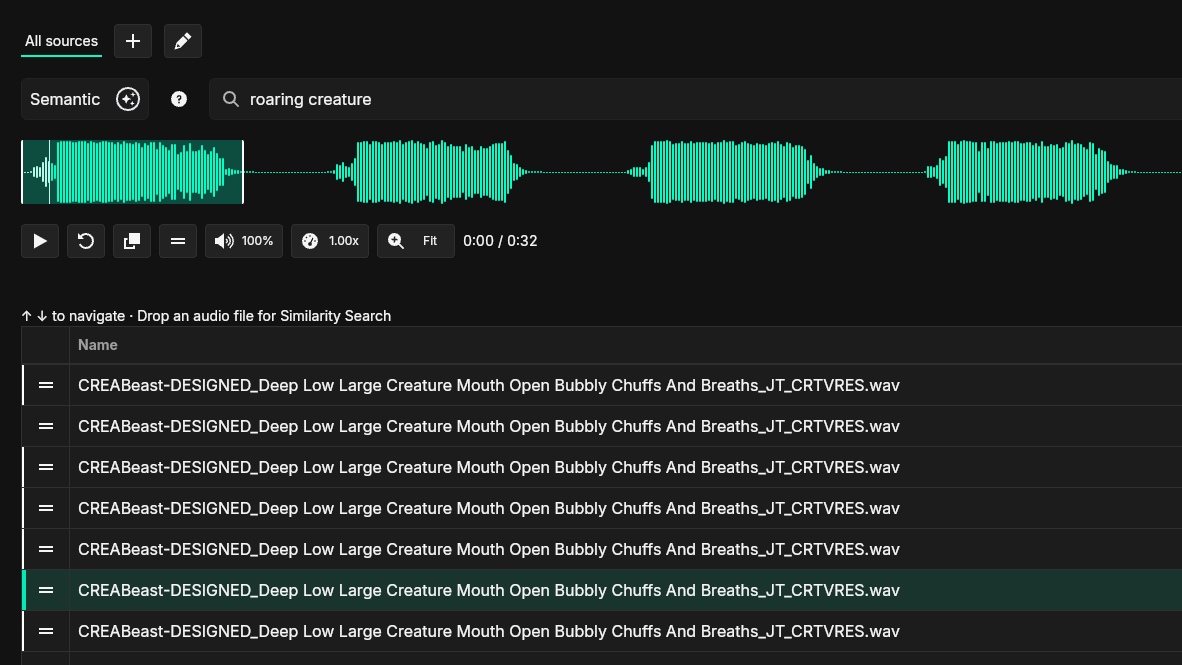
6. Preview, compare, and export
Preview sounds, compare close matches, inspect the waveform, and export what you need without leaving the app.
- Preview results quickly
- Compare close options faster
- Export the full file or only the section you want to use
Tips for your first session
- You can start searching before the full scan finishes
- Results improve as more files are scanned
- Use plain-language search to describe the sound you need
- Use similarity search to explore close matches